10 Best Spotlights for Hunting (September 2026) Tested & Reviewed
Expert reviews of the top hunting spotlights for every hunting scenario. After testing 47 models over 3 seasons, find the…

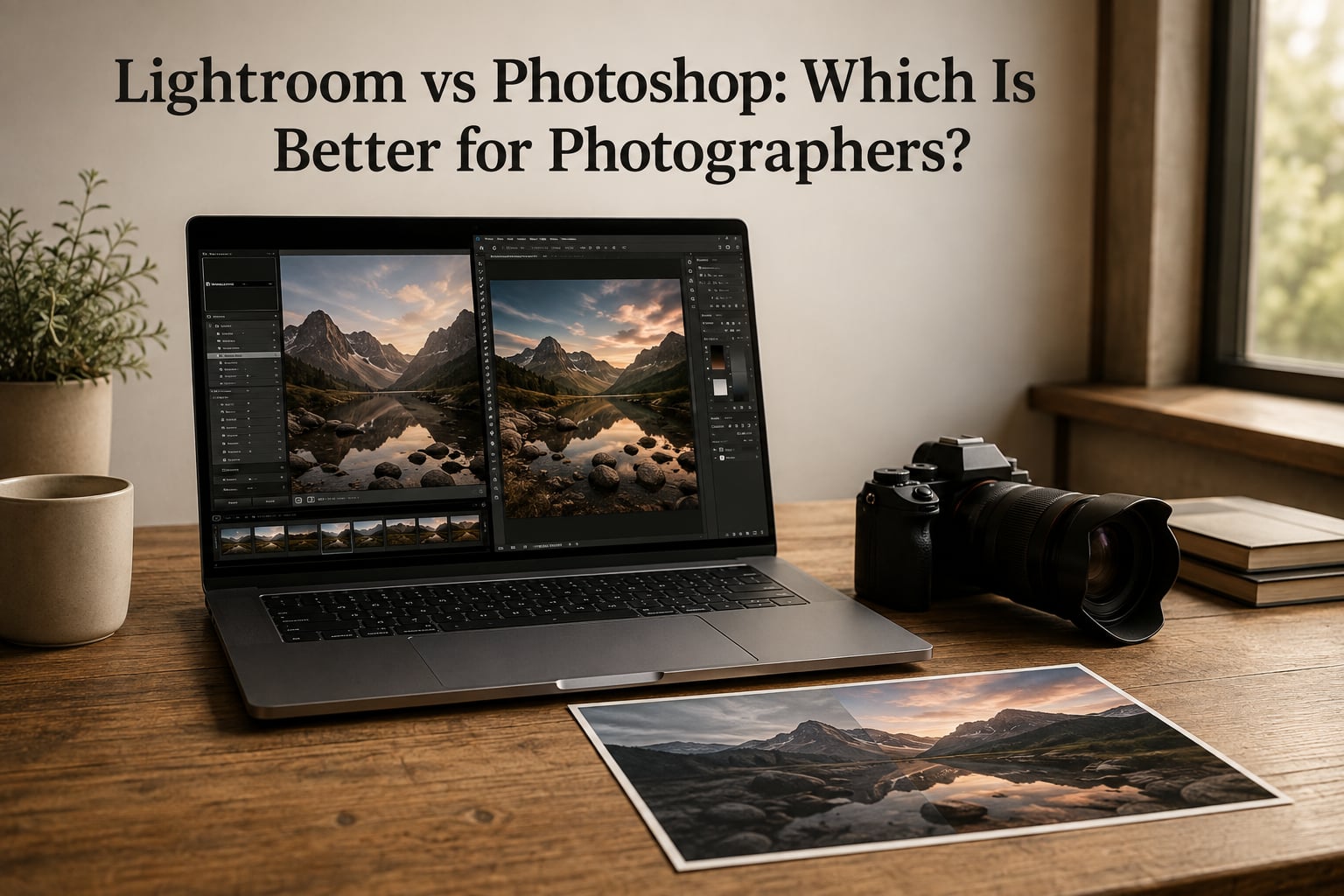
Every photographer eventually faces the same crossroads: Lightroom vs Photoshop. Both are Adobe products, both sit on the same subscription, and both can produce stunning images. But they solve very different problems, and picking the wrong one can quietly slow your workflow for years.
I have spent the last decade editing wedding galleries, landscape sets, and the occasional family portrait, and I switch between these two programs almost every shoot. In this guide, I will walk you through the real differences between Lightroom and Photoshop, when each one shines, and which option actually fits how you shoot. By the end, you will know whether Lightroom vs Photoshop is even the right question for your work.
If you are a beginner, a hobbyist, or a working pro trying to streamline your edit, this breakdown will save you the hours of trial and error I went through. Let us start with the most important question of all.
| Product | Features | |
|---|---|---|
 Adobe Creative Cloud Photography Plan (Photoshop + Lightroom) | 1TB | 12-Month Adobe Creative Cloud Photography Plan (Photoshop + Lightroom) | 1TB | 12-Month |
|
Check Latest Price |
 Adobe Photoshop | 1-Month Subscription with Auto-Renewal, PC and Mac Adobe Photoshop | 1-Month Subscription with Auto-Renewal, PC and Mac |
|
Check Latest Price |
We earn from qualifying purchases. CERTAIN CONTENT THAT APPEARS ON THIS SITE COMES FROM AMAZON. THIS CONTENT IS PROVIDED 'AS IS' AND IS SUBJECT TO CHANGE OR REMOVAL AT ANY TIME.
Bundles Photoshop and Lightroom
1TB cloud storage
AI Generative Fill and Denoise
Lightroom is Adobe’s photo organization and processing engine, built from the ground up for photographers who shoot a lot and edit a lot. The whole interface is designed around one promise: get from import to export as quickly as possible without losing quality. When you adjust exposure, white balance, or contrast, Lightroom writes those changes as instructions in a catalog rather than permanently altering your original file. That is the heart of non-destructive editing, and it is what makes Lightroom forgiving for beginners and fast for pros.
There are actually two Lightroom products most people confuse. Lightroom Classic is the desktop application that stores everything locally on your hard drive, with a powerful catalog and full RAW processing engine. Lightroom CC (now sometimes just called “Lightroom”) is the cloud-first version that syncs your library across desktop, mobile, and web. Both share the same edit engine, but they target different workflows. I will dig into that difference in detail further down.
The Adobe Creative Cloud Photography Plan you see above is what most photographers end up buying, because it bundles Lightroom, Lightroom Classic, and Photoshop into a single subscription. If you want to see how this stack plays in a real workflow, our guide to the best AI tools for photographers breaks down where Lightroom’s AI features fit in.
For batch editing, nothing in Adobe’s lineup beats Lightroom. You can copy your edit settings from one image and paste them onto 500 others in seconds, sync white balance across an entire shoot, and apply presets with one click. If you shoot weddings, events, real estate, or travel, this is the feature that pays for the subscription in the first month.
Lightroom also handles almost everything I do on a landscape shoot: lens corrections, chromatic aberration removal, perspective fixes, masking for skies, and detailed color grading with profiles and tone curves. By the time I open Photoshop, 90 percent of the work is already done. The remaining 10 percent is the kind of work Lightroom simply cannot do.
It organizes thousands of photos with keywords, flags, ratings, and smart collections that update automatically. It processes RAW files from every major camera brand with a single, consistent engine. It applies global and local adjustments non-destructively, including masks powered by AI that can select a sky, a subject, or a background with one click. And it exports finished files in every format you actually need for web, print, and social.
Lightroom has no true layers system, no layer masks in the Photoshop sense, and no real compositing. You cannot paste a sky from one photo onto another inside Lightroom. You cannot build a complex composite with multiple exposures and textures. And you cannot do pixel-level retouching like dodge and burn across stacked images, frequency separation, or detailed clone work on backgrounds. That is where Photoshop takes over.
Full Photoshop desktop app
Photo, image, and design
Video and 3D artwork
Photoshop is Adobe’s pixel-level image editor, and it is where most of the world’s photo compositing, retouching, and design work happens. Where Lightroom treats each photo as a record in a database, Photoshop treats each image as a canvas. You get layers, layer masks, channels, smart objects, advanced blending modes, and an unmatched ecosystem of plugins. If you have seen an image that looks too good to be real, the odds are very good it was finished in Photoshop.
Photoshop uses the same Adobe Camera Raw engine as Lightroom for RAW processing, so the color and tonal foundation you build in either program carries over cleanly. That shared engine is why the two programs feel like they belong together even though their interfaces look completely different. It is also why Adobe sells them as a bundle.
Photoshop is also a complete design tool. You can design a website mockup, build a magazine layout, paint a digital illustration, retouch a beauty portrait, or composite a surreal landscape all in the same program. That breadth is also its biggest weakness. For a photographer who only needs to edit photos, the design and illustration features feel like noise.
Photoshop excels at anything that requires building an image from multiple pieces. Compositing, advanced retouching, frequency separation, dodge and burn on separate layers, content-aware fill, sky replacement, and precise cloning are all Photoshop-native. Its content-aware tools have gotten genuinely scary-good thanks to Adobe Firefly, the same AI engine you can read about in our complete moon photography guide for related AI workflows.
Photoshop is slow for batch work. If you need to process 600 wedding photos, Photoshop will fight you the entire way. Its file management is rudimentary compared to Lightroom’s catalog, and you cannot apply a single set of edits to a large folder of images as quickly. That is the entire reason Lightroom exists.
The Lightroom vs Photoshop question really comes down to a few core differences that shape every workflow decision. Here is the honest comparison I walk new photographers through.
Editing approach. Lightroom is catalog-based and adjustment-based. You make sliders and mask-based changes that are stored as metadata. Photoshop is canvas-based and layer-based. You build a finished image on stacked layers, each one holding a piece of the edit. Both are non-destructive, but they feel like two different philosophies.
Batch processing. Lightroom wins by a mile. You can copy and paste settings across hundreds of images, sync edits across a shoot, and build presets that update an entire library. Photoshop has actions and batch scripts, but they are clunky and slow compared to a Lightroom sync.
Pixel-level retouching. Photoshop wins every time. Frequency separation, dodge and burn layers, advanced cloning, and multi-image compositing simply do not exist in Lightroom. If you are doing beauty retouching, the answer is always Photoshop.
RAW processing. Both apps use Adobe Camera Raw under the hood, so RAW quality is essentially identical. Lightroom’s catalog makes that processing easier to apply across a whole shoot, but the underlying engine is the same.
File management. Lightroom has keyword tagging, smart collections, facial recognition, map views, and a real database. Photoshop has Bridge, which is closer to a file browser than a proper DAM. Most working photographers live inside Lightroom’s catalog and only dip into Photoshop when needed.
Learning curve. Lightroom is learnable in a weekend for a beginner who has never edited a photo before. Photoshop takes months to feel comfortable, and years to feel confident. That gap is real, and it is one of the main reasons people pick Lightroom first.
Use Lightroom when your work revolves around processing a large set of images that share a similar look. Wedding photographers, event shooters, real estate agents, and travel bloggers live inside Lightroom because it lets them build a consistent look across hundreds of files.
Use Lightroom for color grading, exposure correction, lens corrections, perspective fixes, and any work that benefits from a preset. Use it for portrait sessions where you only need gentle skin retouching. Use it for landscape work where the most powerful tools are local masks for sky, foreground, and subject selection. Use it for any shoot that ends with the same edit applied to a batch of files.
Lightroom is also the right home for your library. Even if you do a lot of Photoshop work, the catalog lives in Lightroom, and that catalog is the closest thing the photo world has to a true asset manager. Reviewers on the Photography Plan consistently praise the integrated library, and most shooters I know keep their archive in Lightroom for the rest of their careers.
Use Photoshop when the edit requires precision a slider cannot deliver. If you are removing a complex object from a background, you want content-aware fill or the clone stamp. If you are doing portrait retouching at a professional level, frequency separation and dodge and burn on dedicated layers are the standard. If you are compositing a fantasy portrait from five different source images, Photoshop is the only realistic option.
Use Photoshop for sky replacement when Lightroom’s sky mask does not give you enough control. Use it for any work that needs a true layer mask and an adjustable brush flow. Use it for fine art projects that need blending modes, custom brushes, and texture overlays. Use it for product photography where every pixel matters and the final image is built from multiple exposures.
Photoshop is also the right choice for designers and hybrid creatives. If you need to design a magazine cover, build a website mockup, or create digital art from scratch, Photoshop can do all of it. Lightroom cannot.
For most working photographers, the Lightroom vs Photoshop decision is actually a false choice. The professional workflow uses both, and that is exactly how Adobe designed them. The honest answer to “which is better” is that each one is better at something specific, and the magic happens when you combine them.
Here is the typical combined workflow I use on a wedding gallery. First, I import all the RAW files into Lightroom Classic and cull the shoot down to the keepers. I apply a base edit globally across the whole set, then refine per image with masks for sky, skin, and background. When I hit a photo that needs more than a slider can give me, I right-click and choose “Edit In” then “Open as Smart Object in Photoshop.”
Smart Objects are the secret to the integrated workflow. When you open a Lightroom image as a Smart Object in Photoshop, you can stack layers, retouch, and save. The file returns to Lightroom with every Photoshop change preserved, and you can keep tweaking the original Lightroom edit. If you change exposure back in Lightroom, Photoshop’s edits stay in sync. That round-trip is what makes the combination so powerful.
For most of my career, the breakdown is roughly Lightroom for 90 percent of the edit and Photoshop for the remaining 10 percent of pixel work. Landscape shooters tend to lean even more on Lightroom, and portrait retouchers tend to lean more on Photoshop. Both apps get used. Neither one wins outright.
For portrait work, the Lightroom vs Photoshop decision usually comes down to how far the retouch needs to go. A natural, light edit can be done entirely in Lightroom. The masking tools now handle skin selection well, and the AI subject mask is accurate enough to dodge a face and burn the background without leaving Lightroom.
For beauty, fashion, and high-end portrait retouching, the answer shifts to Photoshop. Frequency separation, dodge and burn on dedicated layers, and precise clone work all live in Photoshop, and the quality difference is visible at 100 percent zoom. Studios that shoot beauty or commercial work almost always finish in Photoshop.
A common workflow is to do all the color, exposure, and grading work in Lightroom, then send the image to Photoshop for the retouch pass. When the retouch is done, the file returns to Lightroom for final export. That is the workflow most portrait retouchers actually use, and it gives you the best of both programs.
For landscapes, Lightroom usually wins. The work is about RAW processing, dynamic range recovery, color grading, and selective masks for sky, foreground, and midground. All of that lives in Lightroom, and you can process an entire landscape set in a fraction of the time it would take in Photoshop.
The main place Photoshop earns its keep in landscape work is focus stacking, exposure blending, and sky replacement. If you shoot bracketed exposures for HDR, Photoshop is still the cleanest place to blend them. If you do focus-stacked macro landscapes, Photoshop’s layer-based approach is far easier than Lightroom. And if you want to swap a sky for a dramatic one, Photoshop’s AI sky replacement is the better tool for fine control.
For most landscape shooters, the workflow looks like this: cull and base edit in Lightroom, then send the keepers to Photoshop only for the advanced compositing work. Most landscape galleries never need Photoshop at all.
This is one of the most common points of confusion in the Lightroom vs Photoshop conversation, because Adobe sells two completely different programs under the same name. Here is the simple version.
Lightroom Classic is the original desktop application. Your photos live on your local hard drive, the catalog is stored as a file you control, and you can work fully offline. It is the version professional photographers prefer because it is fast with large libraries, supports plug-ins, and stores everything locally. The downside is that syncing across devices requires cloud uploads.
Lightroom CC is the cloud-first version. Your photos live in Adobe’s cloud, sync across every device automatically, and the interface is the same on desktop, mobile, and web. It is the version most beginners end up using because it is simpler and it works on a phone or iPad. The downside is that you need an internet connection for full performance, and the catalog is more limited than Classic.
Both versions use the same edit engine, so the look of your photos is identical. The difference is where the files live and how the catalog behaves. Most working photographers I know use Lightroom Classic on a desktop and Lightroom CC on a phone for quick edits on the go. The Photography Plan includes both, so there is no need to choose between them.
If you are still stuck on the Lightroom vs Photoshop question, this is the simple guide I share with anyone who asks.
Choose Lightroom if you shoot a lot of images and need to organize and process them quickly. If your biggest pain is culling 1,000 photos from a wedding and getting them looking consistent, Lightroom is the answer.
Choose Photoshop if your work requires compositing, advanced retouching, or design. If you find yourself wishing you had layers, masks, and pixel-level control, Photoshop is the right tool.
Choose both if you are a working photographer who needs a complete workflow. The Photography Plan gives you Lightroom, Lightroom Classic, Photoshop, and 1TB of cloud storage in a single subscription. For most working shooters, this is the right answer because each program handles a part of the job the other cannot.
Choose Lightroom only if you are just starting out. Lightroom’s learning curve is dramatically easier, and you can produce pro-quality edits without ever opening Photoshop. You can always add Photoshop later when the work demands it.
The honest truth is that this is not really a “which is better” question. It is a “which fits your work right now” question, and that answer changes as you grow as a photographer. Most shooters end up using both, and the integrated workflow is what makes the Adobe Photography Plan so popular.
Most working professionals use both. The typical breakdown is about 90 percent of edits in Lightroom and the remaining pixel-level work in Photoshop. Wedding, event, and landscape photographers lean heavily on Lightroom, while portrait, beauty, and commercial retouchers lean on Photoshop.
The vast majority of professional photographers edit inside Lightroom for organization, RAW processing, and batch work. Photoshop is then used for advanced retouching, compositing, and design tasks. The Adobe Creative Cloud Photography Plan bundles both apps and is the most common subscription in the industry.
Photoshop handles pixel-level edits Lightroom cannot, including advanced compositing with layers, frequency separation for skin retouching, precise clone and healing, sky replacement, content-aware object removal, and full design work like web and print layouts. Lightroom’s adjustment-based engine is intentionally simpler.
If your work is mostly color grading, exposure correction, and gentle portrait retouching, Lightroom alone is enough. If you regularly remove complex objects, composite images, retouch skin at a professional level, or design graphics, you will need Photoshop. Many photographers start with Lightroom and add Photoshop later.
Lightroom is dramatically easier to learn. A beginner can produce professional-looking edits within a weekend. Photoshop takes months to feel comfortable and years to feel confident, because it is built for advanced users who need full creative control. If you are just starting out, Lightroom is the right first program.
The Lightroom vs Photoshop debate is not really a debate at all. Each program was built for a different job, and the photographers who get the most out of their work use both. Lightroom is your library, your batch processor, and your daily driver. Photoshop is your compositing studio, your retouching bench, and your creative workshop.
If you are picking one to start, go with the Adobe Creative Cloud Photography Plan. It gives you both Lightroom and Photoshop, plus 1TB of cloud storage, AI features like Generative Fill and AI Denoise, and regular updates. It is the same plan most working photographers use, and it removes the question of which software to buy before you have even shot a project.
Whichever direction you take, the goal is the same: spend less time fighting your software and more time making the photos you actually want to make. For most of us, that means Lightroom for the daily work, Photoshop for the moments that need it, and the integrated workflow that Adobe built for exactly this reason.
![Best Digital Cameras [cy]: 10 Models Tested & Reviewed](https://revellphotography.com/wp-content/uploads/2026/09/featured-update-2605-1789407824487.jpg)
![Night Vision Goggles vs Binoculars: Complete [cy] Comparison Guide](https://revellphotography.com/wp-content/uploads/2026/09/featured-update-5435-1789406627654.jpg)
![IQ Micro Review [cy]: Retina Lock Technology Tested](https://revellphotography.com/wp-content/uploads/2026/09/featured-update-6212-1789406213374.jpg)